
Import guide
Move your plane spotting spreadsheet into AVSpot
Save the log as a CSV, check the column names, and your history is in your Hangar.
What you need
A spreadsheet with a header row and one sighting per row. The one thing every row must have is a date. Registration, aircraft type, airline, location, flight number and notes all come across when they are there.
Import is in Settings, under Import Sightings, in the phone app and in the web app. The web app is often the easier place for it, since the spreadsheet is usually on your computer.
1. Save the spreadsheet as a CSV file
A CSV file holds one sheet, so open the sheet with your log on it first.
- Excel. File, then Save As (or Save a Copy), and choose "CSV UTF-8 (Comma delimited) (.csv)" as the file format.
- Google Sheets. File, then Download, then "Comma-separated values (.csv)".
- Numbers. File, then Export To, then CSV. Leave "Include table names" unchecked, so the first row of the file is your header row.
Pick the UTF-8 option whenever you are offered one. It keeps names with accents, such as Aeroméxico, intact. If AVSpot says it couldn't read the file, save it again as UTF-8.
AVSpot also opens an Excel workbook (.xlsx) directly and reads its first sheet. This guide uses CSV because every spreadsheet app can make one and the dates travel as plain text. The older .xls format isn't accepted, so save one of those as CSV first.
2. Check the column names
AVSpot reads the first row as headers and matches each column by its name. Capital letters and column order don't matter. These are the ten fields and the header names it recognizes on its own:
| AVSpot field | Headers it recognizes |
|---|---|
| Registration | Registration, Reg, Tail, Tail Number, Tail No |
| Aircraft Type | Aircraft Type, Type, Aircraft, Model |
| ICAO Type | ICAO Type, ICAO, Type Code |
| Airline | Airline, Operator, Carrier |
| Date | Date, Date Spotted, Date Seen |
| Location | Location, Airport |
| Latitude | Latitude, Lat |
| Longitude | Longitude, Lon, Lng |
| Flight Number | Flight Number, Flight, Callsign |
| Notes | Notes, Note, Comments, Remarks |
A column with any other name starts out set to Ignore. You can point it at the right field yourself on the import screen, so renaming headers in the spreadsheet is a convenience, not a requirement.
Dates AVSpot can read
2026-08-14or2026-08-14 09:20: year, month, day, with an optional 24-hour time.8/14/2026or08/14/2026: month, day, year.8/14/2026 9:20: month, day, year and a 24-hour time.
Dates with slashes are read month first, so 02/07/2026 is February 7. Day-first dates such as
14/08/2026, month names such as 14 Aug 2026, and times with AM or PM aren't read. Write
the year with four digits. The surest choice is to format the date column as year-month-day in your spreadsheet
before you save the CSV.
A row whose date can't be read is left out, and the import screen tells you how many rows that is before anything is imported.
A sample log
This is what a file with every column looks like; scroll sideways to see all ten. Download it as a CSV to try an import or to use as a template.
| Registration | Aircraft Type | ICAO Type | Airline | Date | Location | Latitude | Longitude | Flight Number | Notes |
|---|---|---|---|---|---|---|---|---|---|
| N12003 | Boeing 787-10 | B78X | United Airlines | 2026-08-14 09:20 | Phoenix Sky Harbor (PHX) | 33.4343 | -112.0116 | UA1170 | Morning arrival on runway 26 |
| D-AIXA | Airbus A350-900 | A359 | Lufthansa | 2026-07-02 13:45 | Frankfurt (FRA) | 50.0379 | 8.5622 | LH400 | |
| C-FGDT | Boeing 787-9 | B789 | Air Canada | 2026-07-20 16:30 | Toronto Pearson (YYZ) | 43.6777 | -79.6248 | Star Alliance livery | |
| VH-OQA | Airbus A380-800 | A388 | Qantas | 2026-06-11 07:10 | Los Angeles (LAX) | 33.9416 | -118.4085 | QF94 | |
| D-AIMA | Airbus A380-800 | A388 | Lufthansa | 2026-06-11 11:55 | Los Angeles (LAX) | 33.9416 | -118.4085 | LH456 | Seen from Imperial Hill |
3. Import it
- Open Settings and choose Import Sightings.
- Tap Choose File and pick your CSV.
- On "Match your columns", look over the field AVSpot picked for each column and change any that are wrong.
- Check the preview of the first rows and the line under it, which says how many rows will be imported.
- Tap Import. If some rows have no latitude and longitude, AVSpot asks you to choose one spotting location, or add a new one, and pins those rows to it.
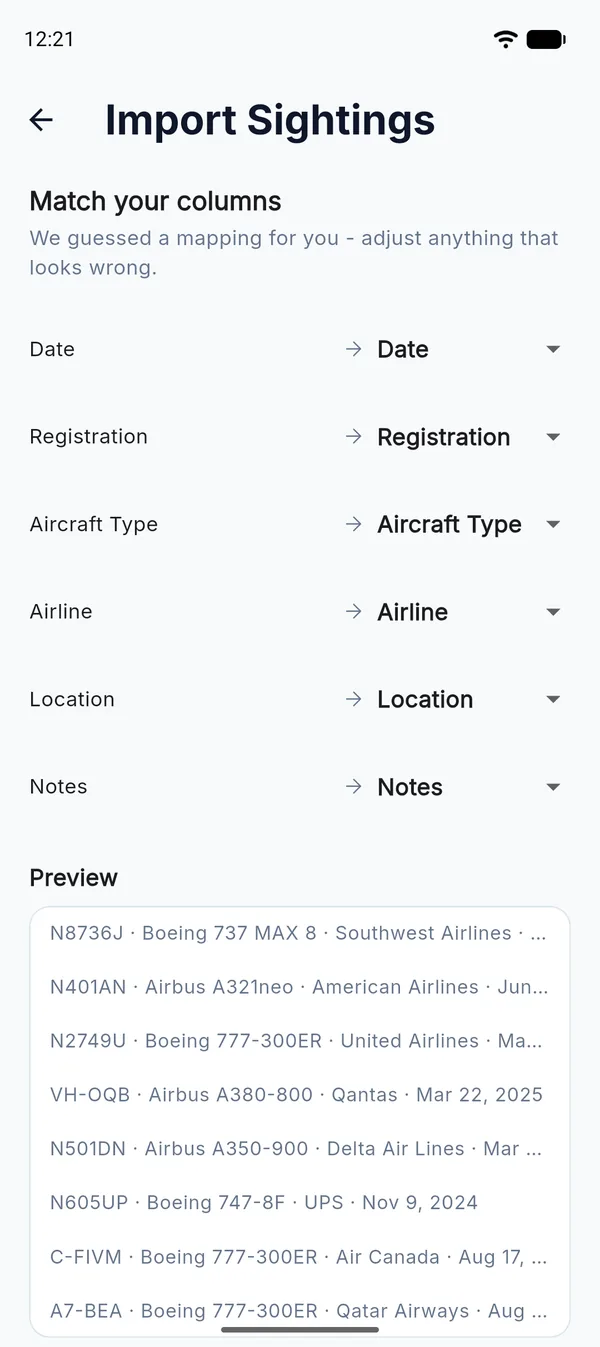
When it finishes, AVSpot tells you how many sightings it added, and your Hangar fills in shortly afterwards.
If your log covers several airports and has no coordinates, import it one airport at a time so that each batch is pinned to the right place. The location name on each row is kept either way.
What happens to aircraft AVSpot doesn't recognize
They are imported anyway. A row is never turned away because its registration, type or airline is unknown.
- The registration is saved as you wrote it, in capital letters.
- An import doesn't look each registration up. It goes by what your file says: the ICAO type code first when there is one, then the type name, and the airline by its name or its two- or three-character code.
- When a type or an airline isn't in AVSpot's catalog, your own wording is kept on the sighting and shown as you wrote it.
- A location name that matches one of your saved locations is linked to it. Any other name is kept as text.
- A row with no registration still comes in, with whatever type and airline it has.
You can edit any sighting after the import.
Importing the same file twice
AVSpot skips a row when your log already has that registration on that date, and the summary says how many it skipped. That makes it safe to run the same file again if an import was interrupted. Rows without a registration can't be compared this way, so a second import adds them again.
Getting your log back out
Your logbook isn't locked in. Go to Settings, then Export Sightings, and AVSpot saves every sighting to one CSV
file named like avspot-sightings-2026-11-05.csv: through the share sheet on a phone, or as a download
in the web app.
The export has the same ten columns as the table above, in that order, with each date and time written out in full. Because the headers match, an exported file imports straight back with every column already matched. Photos aren't part of the file.
Bring your history with you
Import the log you already have, then keep adding to it from the fence.
Spotting in Phoenix? Read the plane spotting guide to Sky Harbor.